59 — 用 R3F 加载模型
介绍
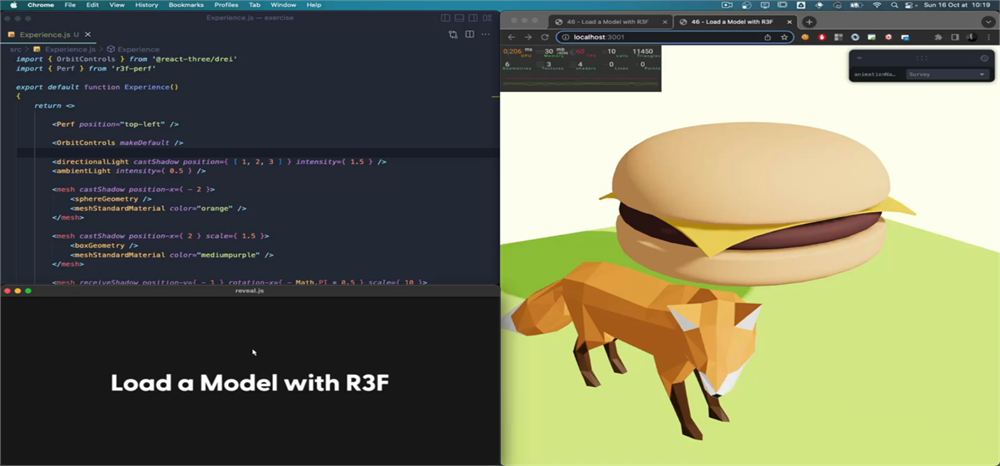
在前面某一课中,我们制作了一个汉堡(虽然我后来意识到它应该叫 “cheeseburger”),并学会了如何在 Three.js 中实现它。
我们将用 R3F 做同样的事,并在过程中发现一些技巧和窍门。
准备工作
起始代码与上一课类似,包含一个球体、一个立方体和一个绿色的地面。
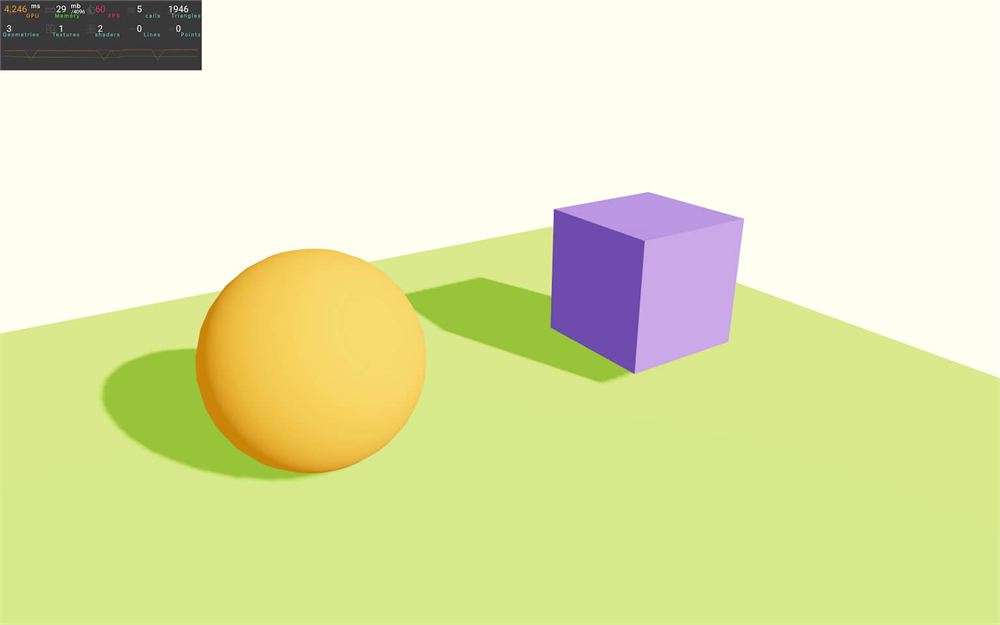
我们还从 r3f-perf 添加了 <Perf />,以便随时关注性能。
我们在 <Canvas> 上启用了阴影,并在对应的 <mesh> 和 <directionalLight> 上添加了 castShadow 和 receiveShadow。
项目中已经安装了 @react-three/drei 依赖,我们使用了 OrbitControls 辅助对象来移动摄像机。
清理
在 Experience.jsx 中,我们先移除那两个只是为了确认阴影能正常工作的球体 <mesh> 和立方体 <mesh>:
export default function Experience()
{
    return <>

        <Perf position="top-left" />

        <OrbitControls makeDefault />

        <directionalLight castShadow position={ [ 1, 2, 3 ] } intensity={ 4.5 } />
        <ambientLight intensity={ 1.5 } />

        <mesh receiveShadow position-y={ - 1 } rotation-x={ - Math.PI * 0.5 } scale={ 10 }>
            <planeGeometry />
            <meshStandardMaterial color="greenyellow" />
        </mesh>

    </>
}

加载模型
/public/ 文件夹中有一堆可用的模型,我们现在先专注于两个 hamburger 文件。
一个是 DRACO 压缩的(hamburger-draco.glb),另一个没有压缩(hamburger.glb)。
在接下来的部分,我们只讨论 GLTF 加载,因为它是标准且最常用的格式,但我们看到的解决方案也可以用于其他格式。
R3F 提供了一个名为 useLoader 的 hook,对加载做了抽象。
在 Experience.jsx 中,从 @react-three/fiber 导入 useLoader:
import { useLoader } from '@react-three/fiber'要使用它,我们需要把想用的 Three.js 加载器类和文件路径传给它。
因为这是 GLTF,我们需要从 three 导入 GLTFLoader:
import { GLTFLoader } from 'three/examples/jsm/loaders/GLTFLoader.js'在 Experience 中,我们现在可以调用 useLoader:
export default function Experience()
{
    const model = useLoader(GLTFLoader, './hamburger.glb')
    console.log(model)

    // ...
}
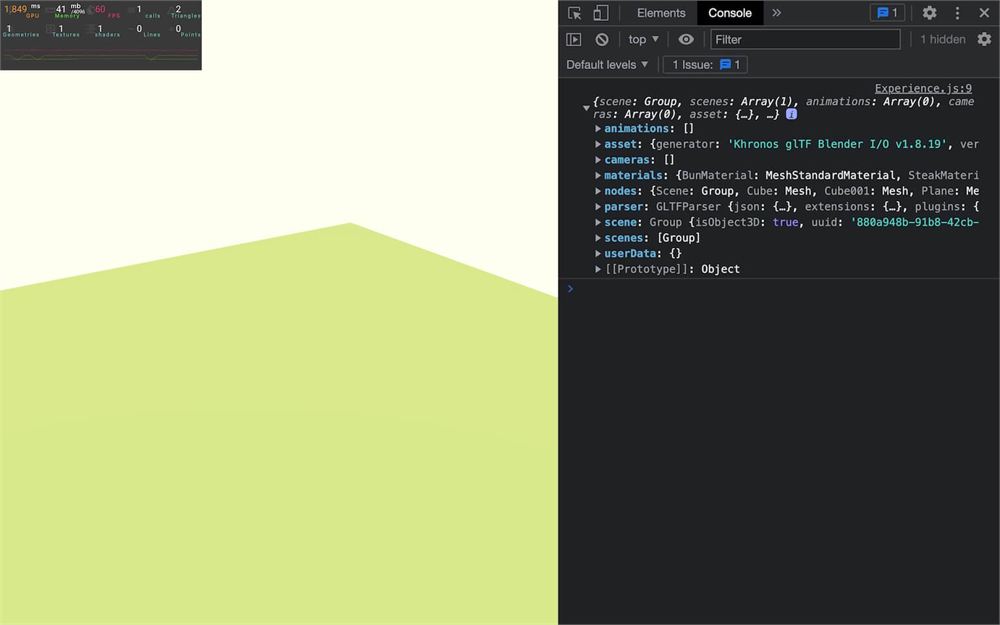
注意我们用 ./ 开头来写文件路径,这在大多数情况下都能工作。'./hamburger.glb' 会在同一文件夹中查找名为 hamburger.glb 的文件,而由于 /public/ 文件夹中的文件会像在网站根目录一样可访问,所以模型会加载成功。不过,在把作品上线时,你可能需要根据网站、访问路径、特定的文件夹结构和重写规则做一些调整。
回到我们的项目,你应该会在控制台中看到一个包含我们模型的对象。
要在场景中显示它,我们需要在 JSX 中的某处添加 model.scene。但不幸的是,我们不能直接这样写:
{ model.scene }也不能这样写:
<model.scene />R3F 不支持这些写法,而且它们本身也没什么意义。
我们需要的是 <primitive>。
<primitive> 是某种容器,可以装入我们想放进去的任何东西。
它不是我们能在场景中看到的真实对象,但它是 R3F 支持的容器,会处理并显示我们放进它 object 属性里的任何东西。
添加一个 <primitive>,把 model.scene 作为 object 属性:
export default function Experience()
{
    const model = useLoader(GLTFLoader, './hamburger.glb')

    return <>

        {/* ... */}

        <primitive object={ model.scene } />

    </>
}
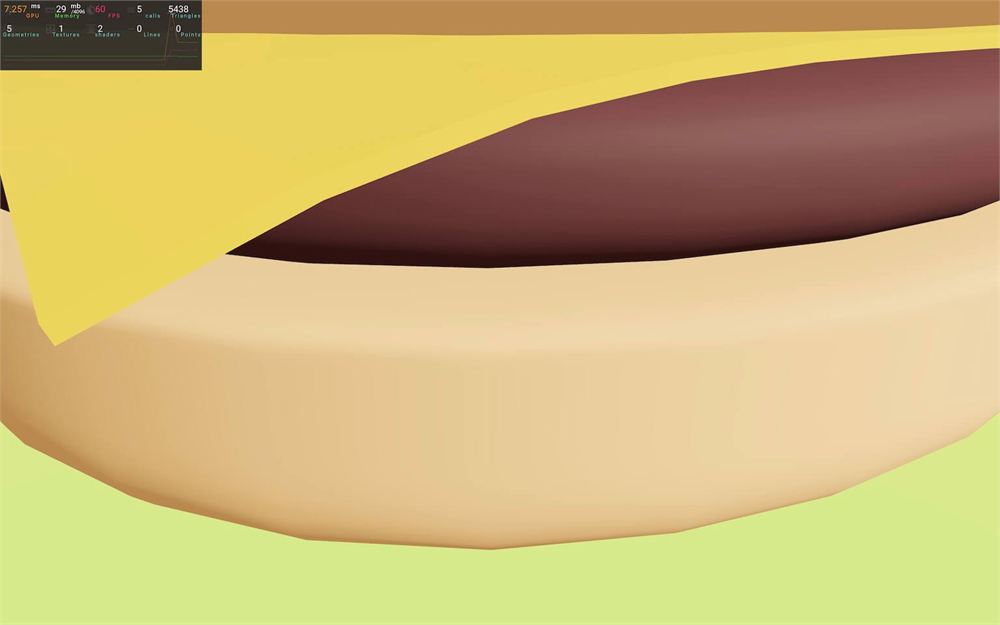
一个巨大的汉堡!我最喜欢的汉堡类型。
它显然太大了,我们可以用 scale 属性缩小它:
<primitive object={ model.scene } scale={ 0.35 } />

记住,给 scale 属性传一个值会把它应用到全部 3 个轴上。
你可能注意到阴影不见了。我们会在本课后面修复它。
DRACO
但 DRACO 压缩的模型该怎么办呢?
如果我们尝试加载它,会得到一个错误:
const model = useLoader(GLTFLoader, './hamburger-draco.glb')
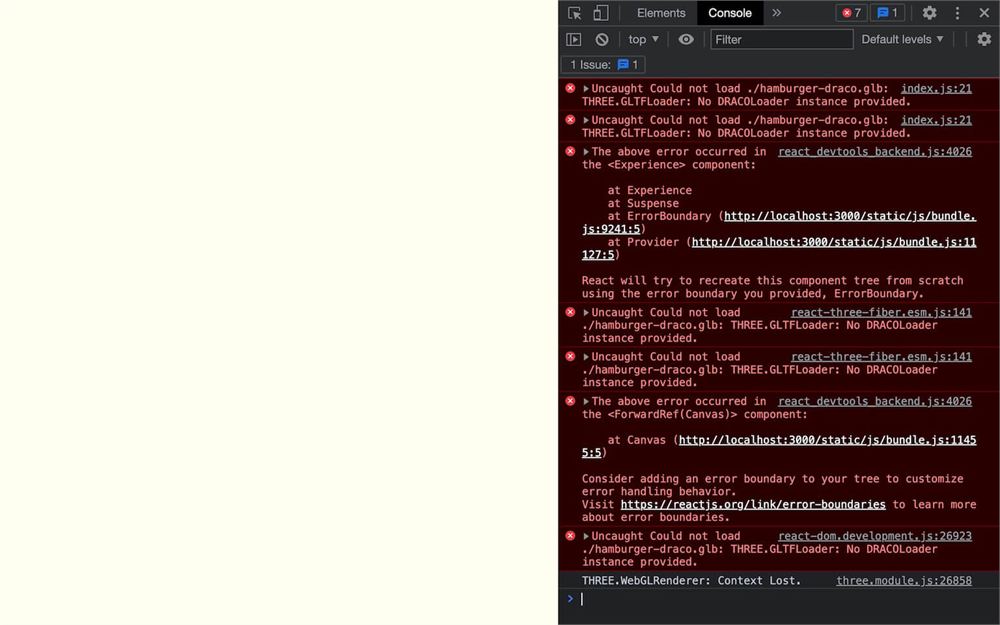
正如前面课程讨论过的,我们需要实例化一个 DRACOLoader 类,并用 setDRACOLoader() 把它添加到 GLTFLoader 实例上。
为此,我们可以给 useLoader() 传第三个参数,向它发送一个函数,让我们能访问加载器实例:
const model = useLoader(
    GLTFLoader,
    './hamburger-draco.glb',
    (loader) =>
    {
        console.log(loader)
    }
)
在这里,我们可以关联一个 DRACOLoader 实例,但首先,我们需要从 three 导入它:
import { DRACOLoader } from 'three/examples/jsm/loaders/DRACOLoader.js'然后我们就可以在该函数中实例化它(DRACO 解码器文件夹在 /public/ 文件夹中可用),并用 setDRACOLoader() 把它关联到 GLTFLoader 实例上:
const model = useLoader(
    GLTFLoader,
    './hamburger-draco.glb',
    (loader) =>
    {
        const dracoLoader = new DRACOLoader()
        dracoLoader.setDecoderPath('./draco/')
        loader.setDRACOLoader(dracoLoader)
    }
)

我们的汉堡回来了,不过这次是 DRACO 压缩过的。
懒加载
你可能注意不到,因为汉堡模型相当轻,而且我们在本地运行服务器,但目前 R3F 会一直等待场景中所有东西都就绪才渲染 Experience。这也包括模型的加载。
加载一个更大的模型
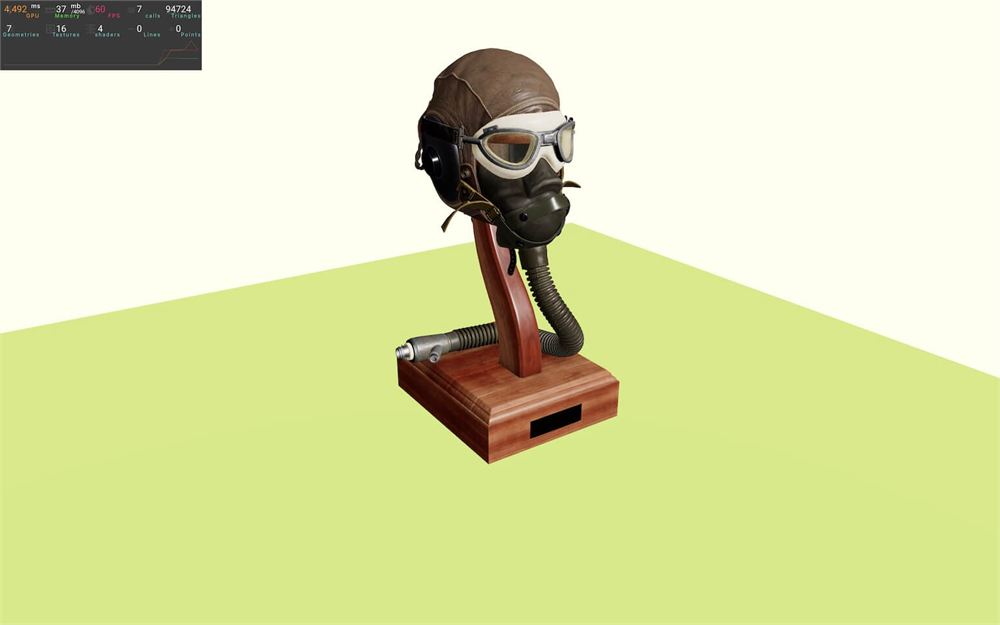
为了更清楚地看到这一点,我们可以切换到 Flight Helmet——也就是我们在 Realistic Render 课程中用过的那个。
把文件路径改为 './FlightHelmet/glTF/FlightHelmet.gltf':
const model = useLoader(
    GLTFLoader,
    './FlightHelmet/glTF/FlightHelmet.gltf',
    (loader) =>
    {
        const dracoLoader = new DRACOLoader()
        dracoLoader.setDecoderPath('./draco/')
        loader.setDRACOLoader(dracoLoader)
    }
)
这个模型太小,而且位置有点高。用 <primitive> 上的 scale 和 position-y 修正它:
<primitive object={ model.scene } scale={ 5 } position-y={ - 1 } />
网络限速
我们现在可以启用网络限速(Network throttling),来模拟需要很长时间加载模型的真实体验。
下面的说明假设你使用的是 Chrome,但大多数现代浏览器都有非常类似的功能,你应该能自己处理。
打开你的 Developer Tools 并进入 Network 标签页。在这里,你就可以启用限速。
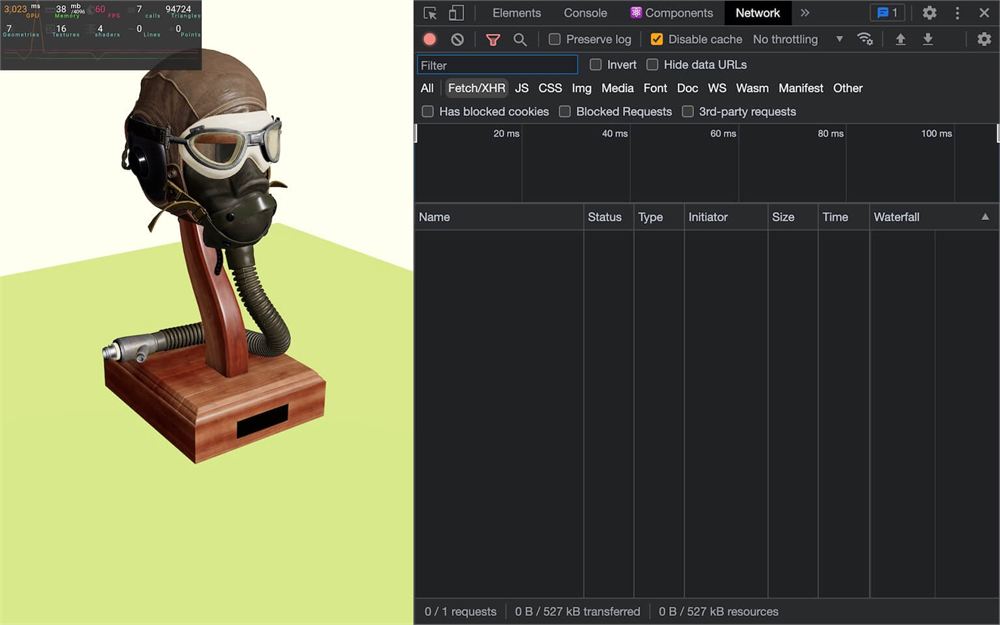
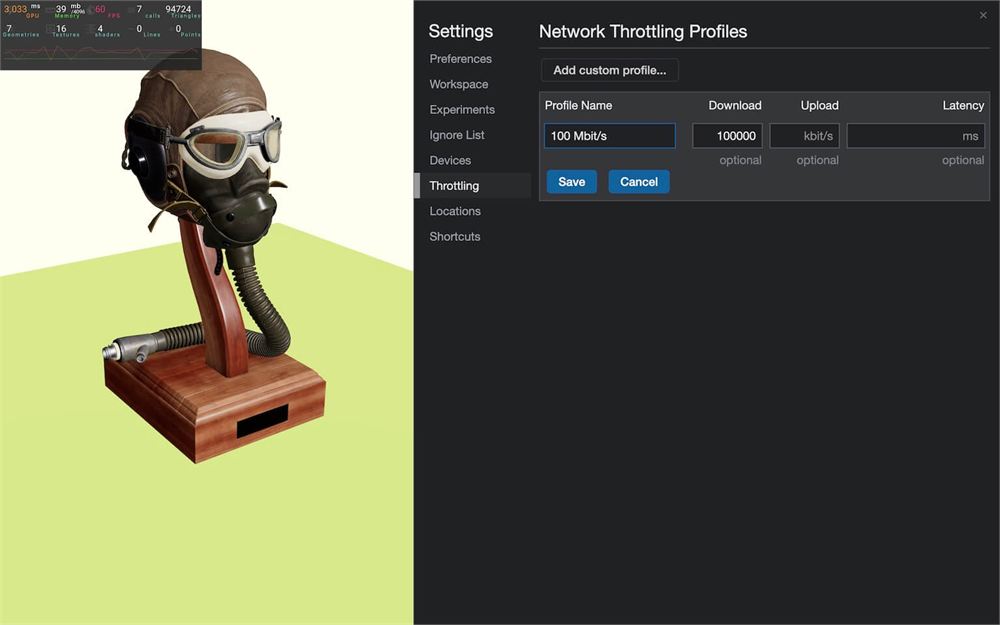
注意,默认值并不总是合适,你可能需要添加一个自定义连接速度(100Mbit/s 的下载速度在我们这里效果不错)。
用这个限速重新加载,应该会先出现几秒的白屏,然后才看到场景。
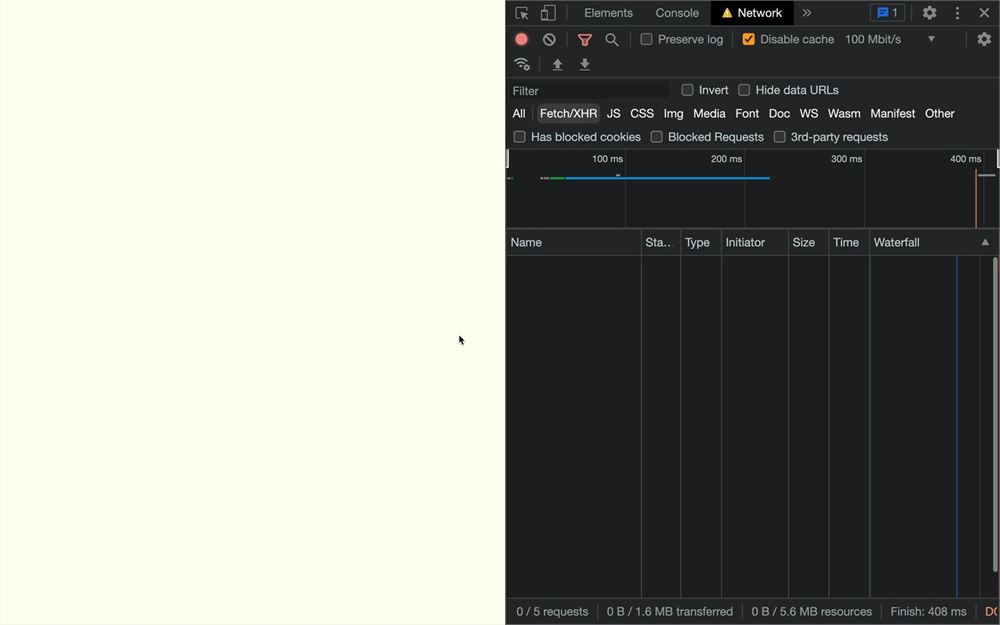
如果设置限速对你不方便,你可以跳过这一步并跟着继续。这个模型非常重(即使在本地),所以无论如何我们也能注意到延迟。
另外要记住,如果你想让网络限速生效,需要保持 Developer Tools 打开。
这个延迟很糟糕,因为用户会有一段时间什么都看不到。
相反,我们希望场景和地面(或任何已经存在的东西)先可见,等模型加载就绪后再出现。
我们称之为 “懒加载”(lazy loading)。
Suspense
要实现懒加载,我们可以使用 <Suspense> 标签。
<Suspense> 是一个 React 组件,它会等待进程完成(在我们的例子中是加载模型),然后再渲染该组件。
但不幸的是,我们的应用中只有一个组件,就是 Experience。
等待模型加载后再渲染 Experience 会产生相同的结果。
我们需要把模型放进一个单独的组件中。
创建一个 /src/Model.jsx 文件,并 default 导出一个 Model 函数:
export default function Model()
{
    return null
}
在 Experience.jsx 中,导入 Model:
import Model from './Model.jsx'在 <primitive> 附近把 <Model> 添加到 JSX 中:
<primitive object={ model.scene } scale={ 5 } position-y={ - 1 } />
<Model />
现在,我们需要把与模型相关的代码从 Experience 移到 Model 中。
移动 useLoader、GLTFLoader 和 DRACOLoader 的导入:
import { useLoader } from '@react-three/fiber'
import { GLTFLoader } from 'three/examples/jsm/loaders/GLTFLoader.js'
import { DRACOLoader } from 'three/examples/jsm/loaders/DRACOLoader.js'
移动 useLoader():
export default function Model()
{
    const model = useLoader(
        GLTFLoader,
        './FlightHelmet/glTF/FlightHelmet.gltf',
        (loader) =>
        {
            const dracoLoader = new DRACOLoader()
            dracoLoader.setDecoderPath('./draco/')
            loader.setDRACOLoader(dracoLoader)
        }
    )

    return null
}
现在移动 <primitive>:
export default function Model()
{
    // ...

    return <primitive object={ model.scene } scale={ 5 } position-y={ - 1 } />
}
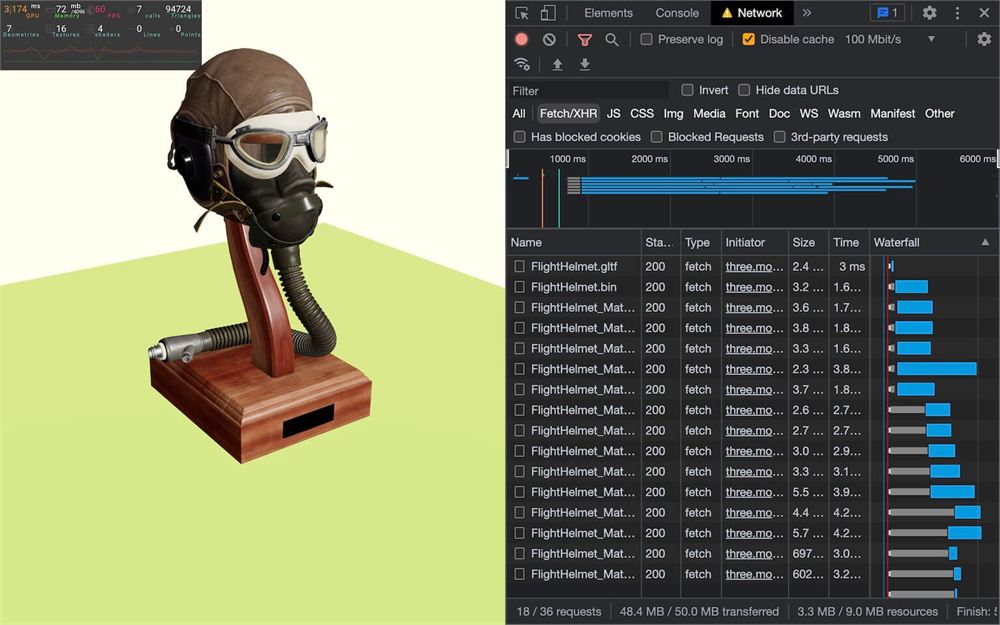
我们应该得到完全相同的结果,但现在我们的模型及其加载都在一个组件里了。
我们终于可以添加 <Suspense> 了。
在 Experience.jsx 中,从 react 导入 Suspense:
import { Suspense } from 'react'把 <Model> 包在 <Suspense> 中:
<Suspense>
    <Model />
</Suspense>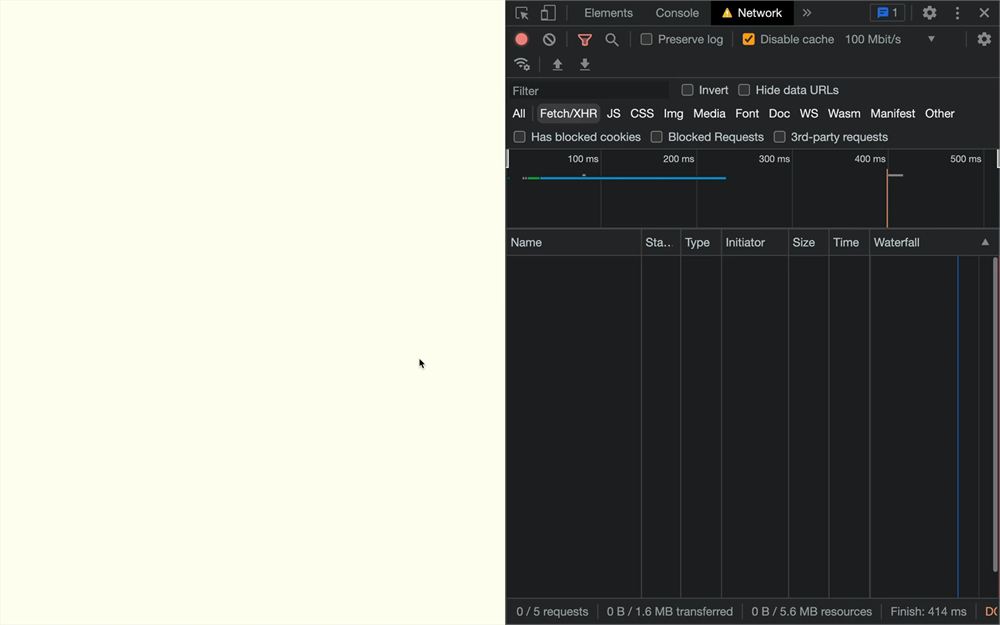
重新加载页面,你会看到地面先出现,我们可以与场景交互,然后模型才出现。
使用 <Suspense> 做懒加载有点棘手,因为我们需要创建组件,但在 React 中把一切拆分成小组件其实是一种常见做法。它让我们的代码更易维护、更易复用。
Fallback
<Supense> 的一个很酷的特性是我们可以设置 fallback。
fallback 是当组件尚未就绪时(在我们的例子中,是模型正在加载时)用户会看到的内容。
要定义 fallback,我们可以使用 fallback 属性:
<Suspense
    fallback={  }
>
在其中,我们可以放入任何想要的东西,以确保用户在加载时能看到一些内容。
我们可以设置一个 <mesh>:
<Suspense
    fallback={ <mesh position-y={ 0.5 } scale={ [ 2, 3, 2 ] }><boxGeometry args={ [ 1, 1, 1, 2, 2, 2 ] } /><meshBasicMaterial wireframe color="red" /></mesh> }
>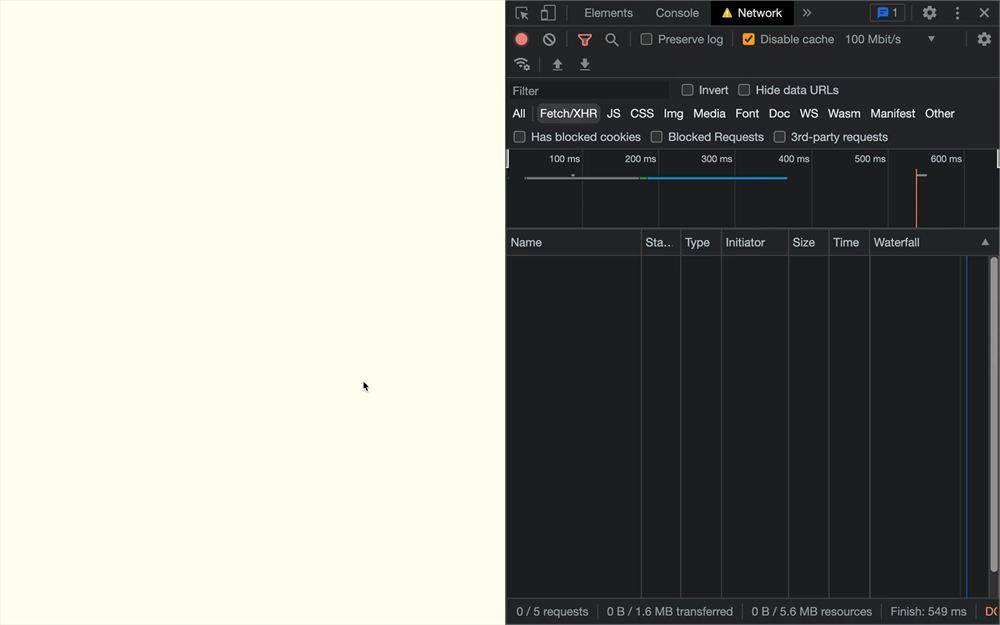
如果你重新加载,会短暂地看到这个线框盒子。
但把组件写在属性里并不太方便。
作为第一个解决方案,我们可以把它分成多行来写:
<Suspense
    fallback={
        <mesh position-y={ 0.5 } scale={ [ 2, 3, 2 ] }>
            <boxGeometry args={ [ 1, 1, 1, 2, 2, 2 ] } />
            <meshBasicMaterial wireframe color="red" />
        </mesh>
    }
>
    <Model />
</Suspense>
这已经好多了,但我们再进一步,创建一个组件。
在 /src/ 中创建一个 Placeholder.jsx 文件,default 导出一个函数:
export default function Placeholder()
{
}
在其中,我们可以返回与刚才放进 fallback 属性里相同的 <mesh>:
export default function Placeholder()
{
    return <mesh position-y={ 0.5 } scale={ [ 2, 3, 2 ] }>
        <boxGeometry args={ [ 1, 1, 1, 2, 2, 2 ] } />
        <meshBasicMaterial wireframe color="red" />
    </mesh>
}
在 Experience.jsx 中,导入 Placholder:
import Placeholder from './Placeholder.jsx'并在 fallback 属性中使用它:
<Suspense fallback={ <Placeholder /> }>
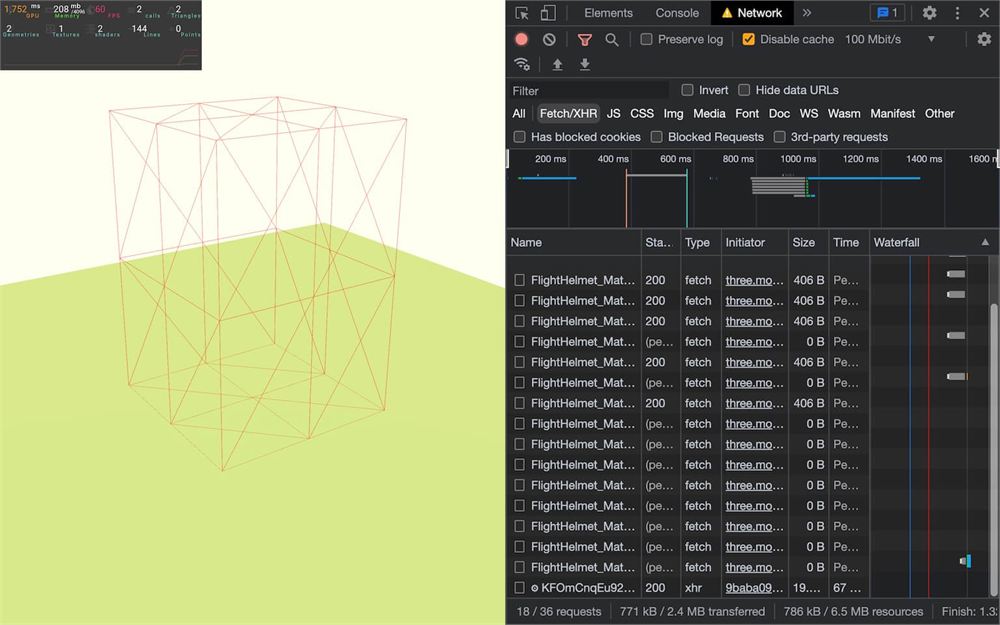
目前,我们是根据头盔模型来设置位置和缩放的。但如果项目中不同的模型有不同的尺寸和位置呢?
一个好的解决方案是让开发者能在 <Placeholder> 上设置属性,并把它们转发给 <mesh>。
在 Placeholder 中,接收 props 参数,并用展开运算符(...)把它们全部应用到 <mesh> 上:
export default function Placeholder(props)
{
    return <mesh { ...props } >
        {/* ... */}
    </mesh>
}
现在,如果需要,我们可以在 <Placeholder> 上设置属性:
<Suspense fallback={ <Placeholder position-y={ 0.5 } scale={ [ 2, 3, 2 ] } /> }>
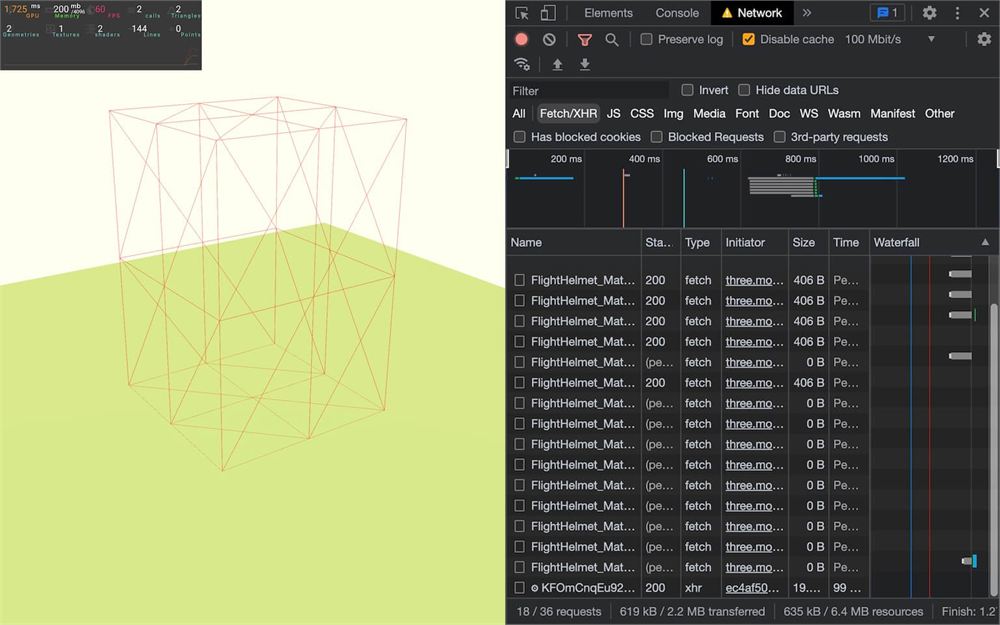
最酷的是,我们可以在任何想要的地方使用我们的 Placeholder。
在继续之前,让我们回到汉堡并禁用网络限速。
在 Model.jsx 中,把路径改回 './hamburger.glb',移除 position-y 属性,并把 scale 设置为 0.35:
export default function Model()
{
    const model = useLoader(
        GLTFLoader,
        './hamburger.glb',
        // ...
    )

    return <primitive object={ model.scene } scale={ 0.35 } />
}

使用 drei 加载 GLTF
这并不算太复杂,但即便如此,我们还是绕了些弯、用了一堆技巧。不过一如既往,多亏了 drei,还有一个更简单的方法。
Drei 实现了多个加载器辅助函数,比如 useGLTF 和 useFBX。
在 Model.jsx 中,从 @react-three/drei 导入 useGLTF:
import { useGLTF } from '@react-three/drei'现在把整个 useLoader() 调用替换为 useGLTF(),只传文件路径这一个参数:
export default function Model()
{
    const model = useGLTF('./hamburger.glb')

    // ...
}

就是这样,我们可以移除 useLoader、GLTFLoader 和 DRACOLoader 的导入了。
你可能会想,那 DRACO 压缩版本该怎么办。
很简单,你什么都不用做。useGLTF 会为我们处理一切,我们甚至不需要在 /public/ 文件夹中提供 DRACO 解码器。
用压缩模型试试:
const model = useGLTF('./hamburger-draco.glb')

预加载
目前,我们的模型只有在组件被实例化时才会开始加载。
在我们的例子中,我们把模型直接加到了 Experience 中,没有任何条件,所以模型会立刻开始加载。但如果我们有一些条件,比如玩家需要进入城堡才能实例化王座室或任何室内装饰,那么加载王座就需要一段时间,用户会在一瞬间只能看到占位符(前提是我们有占位符)。
也许我们能接受这样,但也许我们希望尽可能早地加载模型,以确保玩家到达城堡时它已经就绪。
我们可以用 useGLTF 上的 preload 方法做到这一点。
这听起来可能有点怪,但即使 useGLTF 是一个函数,它也可以有属性和方法(欢迎来到 JavaScript)。
在 Model.jsx 文件中、Model 函数之后,用模型 URL 调用 preload:
export default function Hamburger({ ...props })
{
    // ...
}

useGLTF.preload('./hamburger-draco.glb')
就这样。即使这与我们的情况无关,汉堡也会立刻开始加载,即使我们不在 JSX 中添加 <Model>。
使用完全相同的文件路径非常重要。如果我们预加载的是非 draco 模型,然后在组件被添加时开始加载 draco 模型,我们就白白加载了一个,而且仍然需要等待第二个加载完成。
多个实例
正如 Pippin 所说:“那第二顿早餐呢?”
在我们的例子中,如果我们想要第二个汉堡呢?或者三个?或者一百个?
Drei 通过 Clone 辅助对象让这成为可能。
在 Model.jsx 中,从 @react-three/drei 导入 Clone:
import { Clone, useGLTF } from '@react-three/drei'把 <primitive> 替换为 <Clone>,属性相同:
<Clone object={ model.scene } scale={ 0.35 } />

我们得到相同的结果,但现在我们可以非常轻松地创建其他克隆(别忘了使用 fragment <></>,因为组件只能 return 一个元素):
export default function Model()
{
    // ...

    return <>
        <Clone object={ model.scene } scale={ 0.35 } position-x={ - 4 } />
        <Clone object={ model.scene } scale={ 0.35 } position-x={ 0 } />
        <Clone object={ model.scene } scale={ 0.35 } position-x={ 4 } />
    </>
}
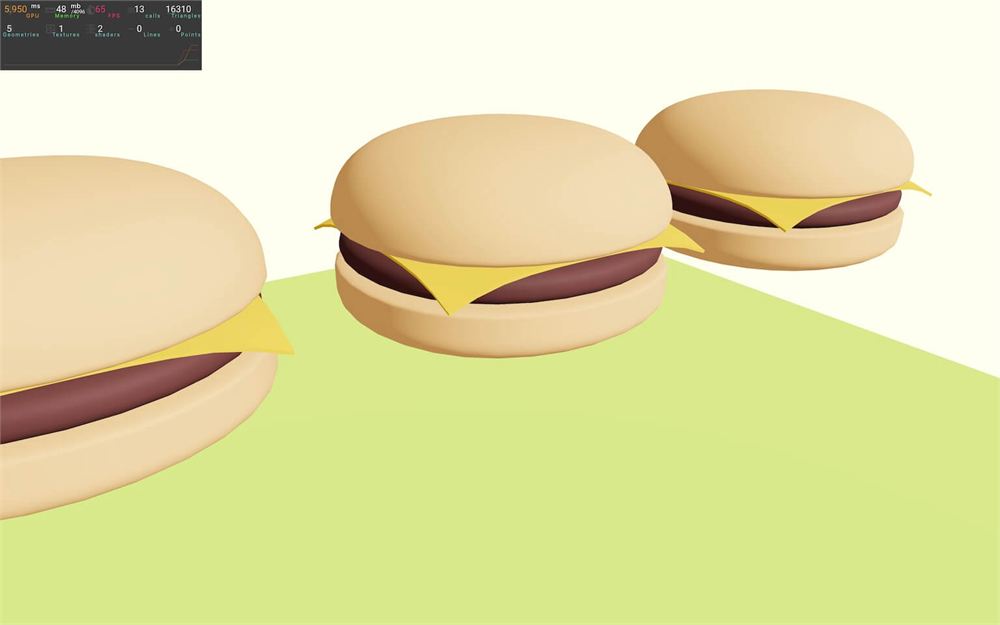
如果你查看性能监控,会看到几何体和 shader 的数量保持不变。Clone 会创建多个 mesh,但它们仍然基于相同的几何体和材质。
GLTF 转组件
如果我们想操作汉堡的各个部分,就需要遍历加载的模型,找到正确的子项,用某种方式保存它,并对它应用我们需要的操作。
另一个选择是在 3D 软件中打开它,修改后再次导出。
这些方案都不方便。
如果能把汉堡作为一个组件使用,里面的一切都放在一段我们可以随意操作的简单 JSX 中,那岂不是太棒了?
这正是 GLTF -> React Three Fiber 所做的事。
这里有一个可用的命令行工具 https://github.com/pmndrs/gltfjsx
这里还有一个可用的在线版本 https://gltf.pmnd.rs/
我们用在线版本。
转换我们的模型
把汉堡文件(draco 或非 draco)拖放到 https://gltf.pmnd.rs,它就会把你的模型转换成组件:
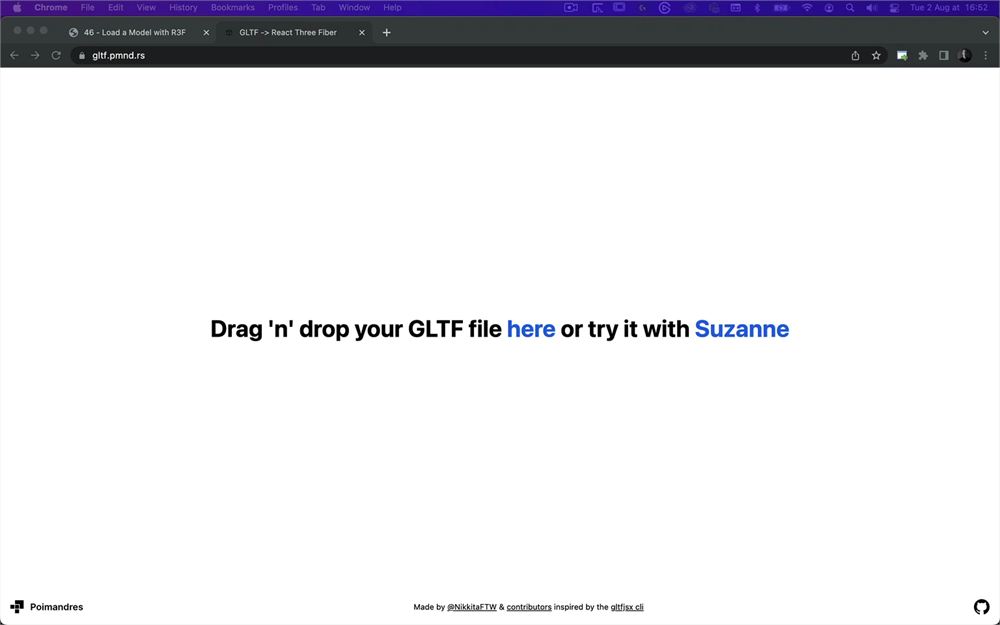
你可以用 Debug UI 更改一些设置,而且如你所见,默认情况下阴影是启用的:
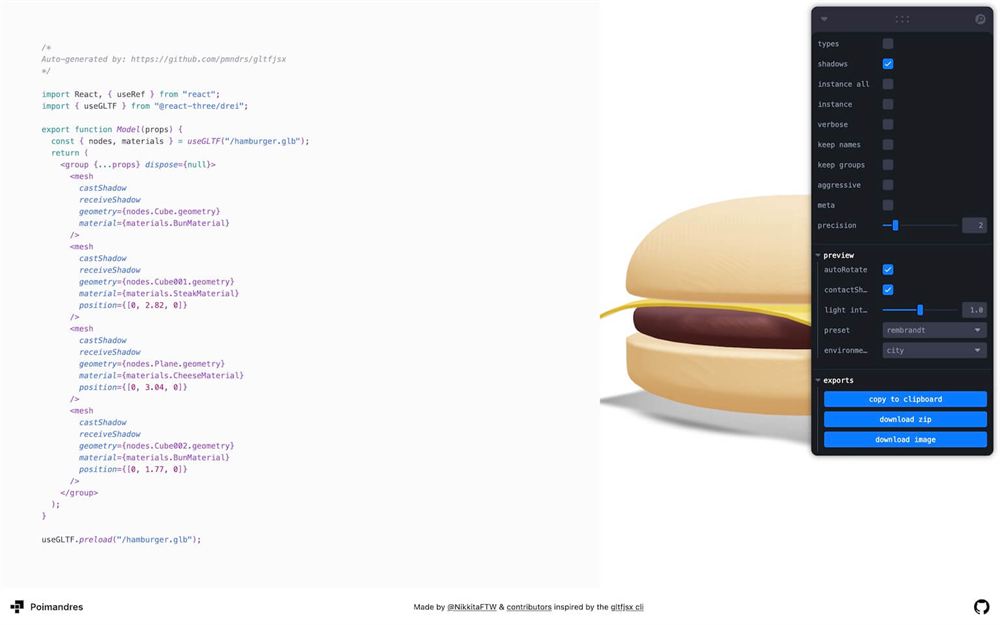
我们保持默认设置。
在 /src/ 中,创建一个 Hamburger.jsx 文件,粘贴 GLTF -> React Three Fiber 生成的代码。你可以用 Debug UI 上的按钮复制,也可以把文件下载为 .zip。这个文件会包含一个极简的 React 项目,里面有你需要的一切。
/*
Auto-generated by: https://github.com/pmndrs/gltfjsx
*/

import React, { useRef } from "react";
import { useGLTF } from "@react-three/drei";

export function Model(props) {
  const { nodes, materials } = useGLTF("/hamburger.glb");
  return (
    <group {...props} dispose={null}>
      <mesh
        castShadow
        receiveShadow
        geometry={nodes.bottomBun.geometry}
        material={materials.BunMaterial}
      />
      <mesh
        castShadow
        receiveShadow
        geometry={nodes.meat.geometry}
        material={materials.SteakMaterial}
        position={[0, 2.82, 0]}
      />
      <mesh
        castShadow
        receiveShadow
        geometry={nodes.cheese.geometry}
        material={materials.CheeseMaterial}
        position={[0, 3.04, 0]}
      />
      <mesh
        castShadow
        receiveShadow
        geometry={nodes.topBun.geometry}
        material={materials.BunMaterial}
        position={[0, 1.77, 0]}
      />
    </group>
  );
}

useGLTF.preload("/hamburger.glb");
重构
这个组件几乎可以直接使用,但我们需要做一些重构。
首先,如果你像我一样有洁癖,可以把各种换行、缩进、分号等整理一下。
其次,这个工具假设我们的模型在根目录(也就是 /public/ 文件夹)中可用,我们的情况正是如此。但在其他情况下,请确保 useGLTF() 和 useGLTF.preload() 中的路径一致。
不过,我们还是可以加上开头的 ./:
// ...

    const { nodes, materials } = useGLTF("./hamburger.glb");

// ...

useGLTF.preload("./hamburger.glb");
然后,这个函数并不是以 default 导出的。这没什么大不了,我们仍然可以把它作为 Model 导入,但我们把它重命名为 Hamburger,并以 default 导出:
// ...

export default function Hamburger(props) {

// ...
我们的组件准备好了。
导入
在 Experience.jsx 中,从 ./Hamburger.jsx 导入 Hamburger:
import Hamburger from './Hamburger.jsx'用它替换 <Model />,同时添加一个 scale:
export default function Experience()
{
    return <>

        {/* ... */}

        <Suspense fallback={ <Placeholder position-y={ 0.5 } scale={ [ 2, 3, 2 ] } /> }>
            <Hamburger scale={ 0.35 } />
        </Suspense>

    </>
}
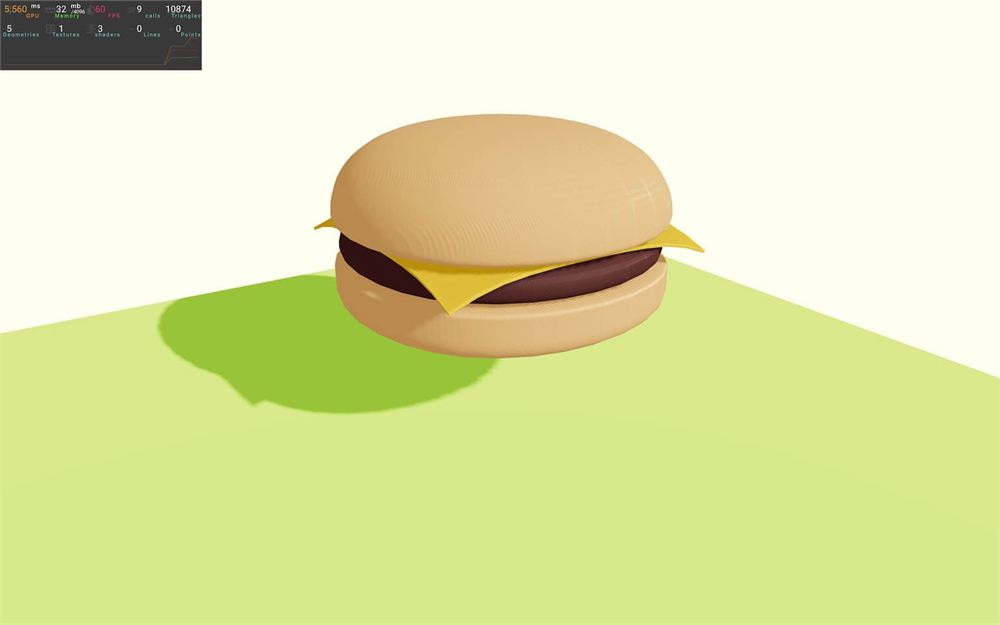
现在我们的汉堡回来了,还附带了阴影。
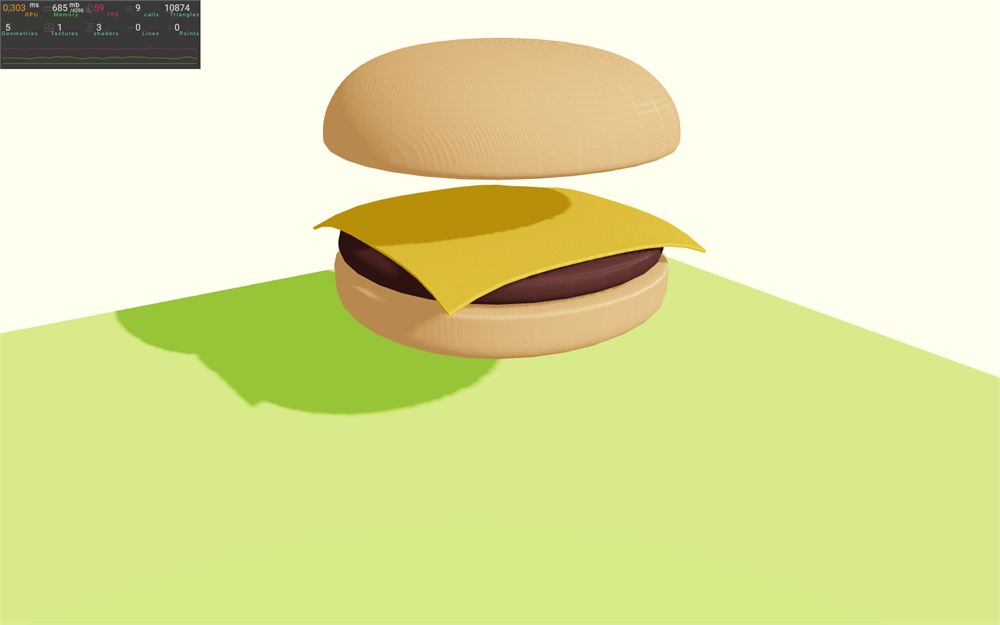
而且由于模型的每个部分都在 Hamburger.jsx 中以 <mesh> 和 <group> 写出来,我们对它有更多控制权。
举例来说,我们可以直接改变顶部面包的位置来移动它(也就是 Hamburger.jsx 中最后那个
export default function Hamburger(props) {
  const { nodes, materials } = useGLTF("./hamburger.glb");
  return (
    <group {...props} dispose={null}>
      {/* ... */}
      <mesh
        castShadow
        receiveShadow
        geometry={nodes.topBun.geometry}
        material={materials.BunMaterial}
        position={[0, 3.77, 0]}
      />
    </group>
  );
}
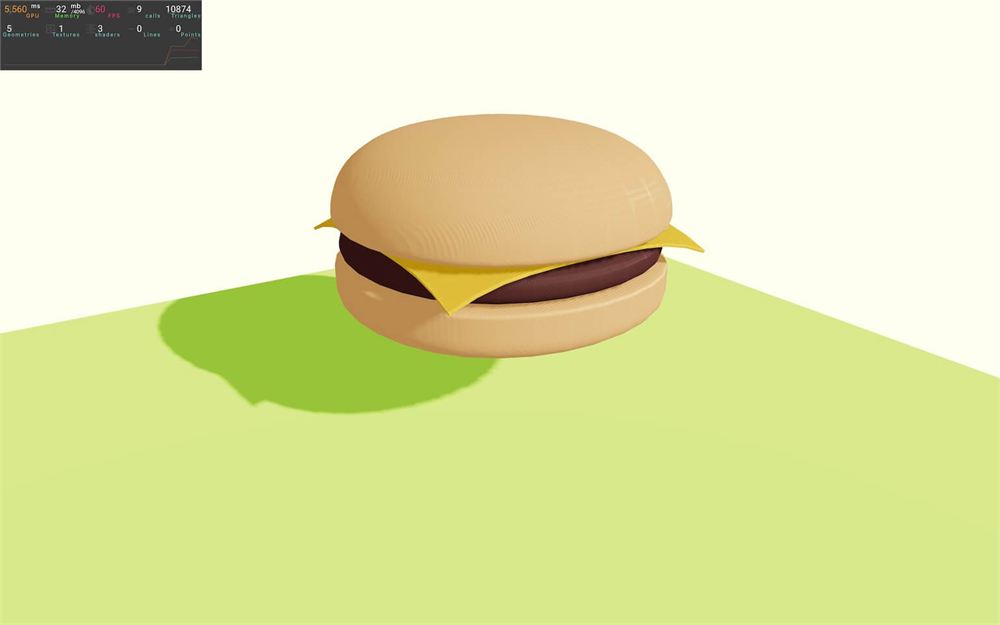
把位置改回原来的:
export default function Hamburger(props) {
  const { nodes, materials } = useGLTF("./hamburger.glb");
  return (
    <group {...props} dispose={null}>
      {/* ... */}
      <mesh
        castShadow
        receiveShadow
        geometry={nodes.topBun.geometry}
        material={materials.BunMaterial}
        position={[0, 1.77, 0]}
      />
    </group>
  );
}
修复阴影
阴影看起来有点奇怪,有条纹横穿汉堡的表面。
正如前面课程讨论过的,这叫做阴影痤疮(shadow acne),是由于模型在自身上投射阴影造成的。
我们可以通过在 Experience.jsx 中微调平行光阴影的 bias 或 shadowBias 来修复这个问题:
<directionalLight castShadow position={ [ 1, 2, 3 ] } intensity={ 4.5 } shadow-normalBias={ 0.04 } />

动画
最后我们需要讨论的话题是动画。
我们将使用 Kronos Group 在 glTF-Sample-Models GitHub 仓库中提供的常用动画狐狸。
Fox 文件已经放在 /public/Fox/ 文件夹中。
我们要创建一个 Fox 组件,用 useGLTF 加载 /public/Fox/ 文件夹中任意可用的模型变体,并把它添加到场景中。
现在是一个自己动手尝试的好机会。
我们一起做吧。
组件
在 /src/ 文件夹中,创建一个 Fox.jsx 文件。
在该文件中,添加并以 default 导出一个名为 Fox 的组件函数:
export default function Fox()
{
    return null
}
回到 Experience.jsx,导入 Fox:
import Fox from './Fox.jsx'并把它添加到场景中:
export default function Experience()
{
    return <>

        {/* ... */}

        <Fox />

    </>
}
加载模型
在 Fox.jsx 中,从 @react-three/drei 导入 useGLTF:
import { useGLTF } from '@react-three/drei'在 Fox 函数中,用 useGLTF 加载模型,并把变量命名为 fox:
export default function Fox()
{
    const fox = useGLTF('./Fox/glTF/Fox.gltf')

    return null
}
现在返回一个 <primitive>,把它的 object 属性设置为 fox.scene:
import { useGLTF } from '@react-three/drei'

export default function Fox()
{
    const fox = useGLTF('./Fox/glTF/Fox.gltf')

    return <primitive object={ fox.scene } />
}
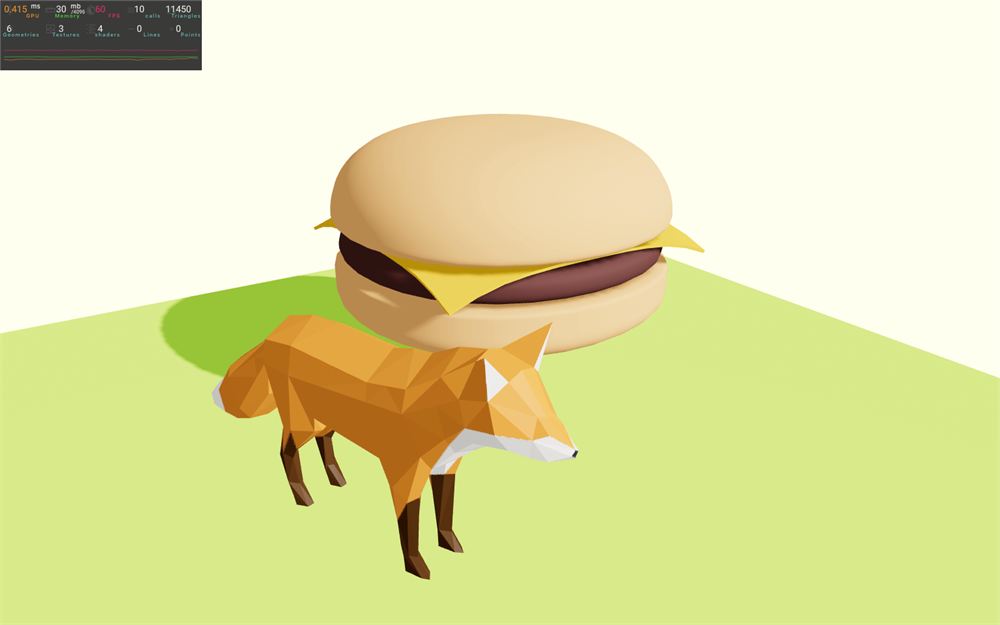
这只狐狸太大了。
使用 scale、position 和 rotation 等各种属性把它移动到汉堡前方:
<primitive
    object={ fox.scene }
    scale={ 0.02 }
    position={ [ - 2.5, 0, 2.5 ] }
    rotation-y={ 0.3 }
/>
播放动画
很好,我们有狐狸了,但怎么让它动起来呢?
你可能猜到了,有一个名为 useAnimations 的 drei 辅助函数可以做到这一点。
从 @react-three/drei 导入 useAnimations:
import { useAnimations, useGLTF } from '@react-three/drei'如果你还记得之前的课程,加载 GLTF 文件时,我们可以在对象中(我们的例子中是 fox)访问各种信息:
export default function Fox()
{
    const fox = useGLTF('./Fox/glTF/Fox.gltf')
    console.log(fox)

    // ...
}
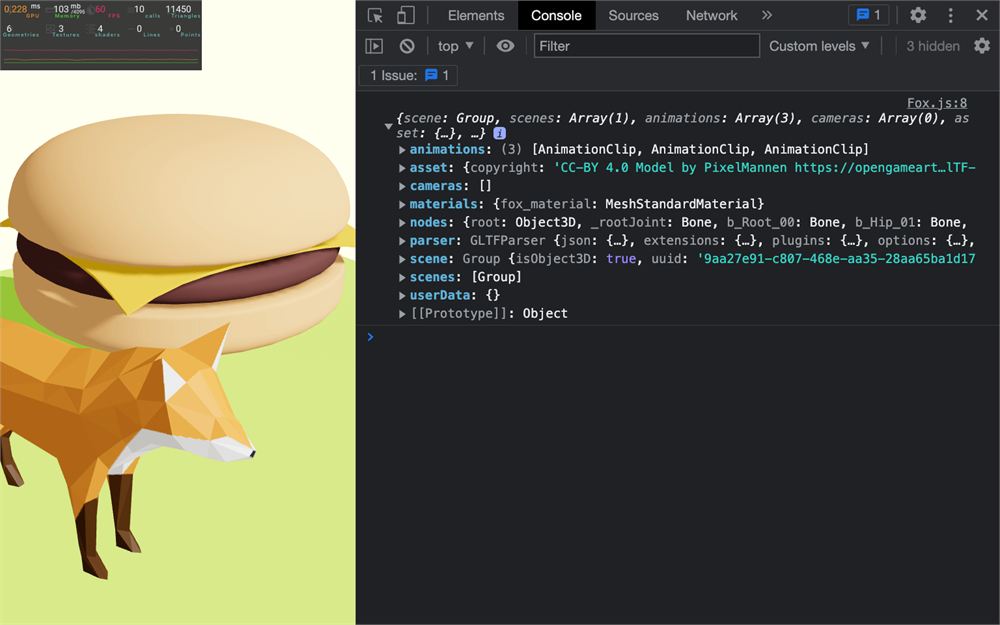
目前,我们已经在 <primitive> 中使用了 fox.scene,但我们也能在 fox.animations 中访问模型自带的动画。
而这两个元素正是我们需要提供给 useAnimations 的。
调用 useGLTF 之后,调用 useAnimation 并把 fox.animations 和 fox.scene 传给它:
export default function Fox()
{
    const fox = useGLTF('./Fox/glTF/Fox.gltf')
    const animations = useAnimations(fox.animations, fox.scene)
    console.log(animations)

    // ...
}
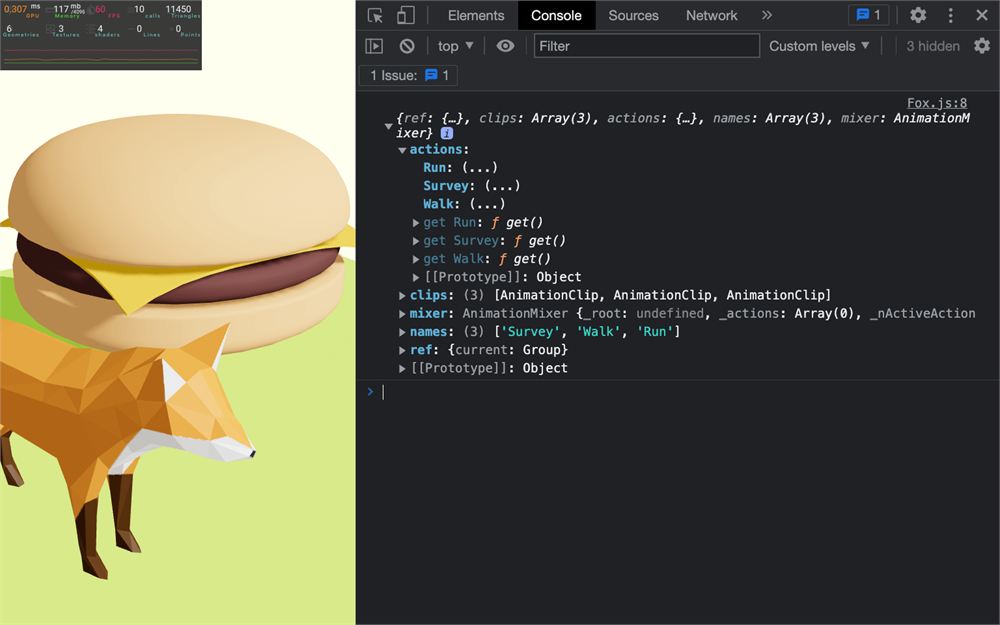
我们现在可以访问模型提供的各种动画,每个动画都使用动画的名称(在 Fox 的情况下是 Run、Survey 和 Walk)转换成了一个 AnimationAction,这些 action 可以在 animation.actions 对象中找到。
但在开始这些 action 之前,最好等组件第一次渲染完成后再进行,这可以用 useEffect 来做。
从 react 导入 useEffect:
import { useEffect } from 'react'在 Fox 中调用它,向它发送一个函数和一个空数组作为依赖:
export default function Fox()
{
    // ...

    useEffect(() =>
    {

    }, [])

    // ...
}
在这里,我们可以从 actions 属性中选择想播放的动画:
export default function Fox()
{
    // ...

    useEffect(() =>
    {
        const action = animations.actions.Run
    }, [])

    // ...
}
并播放它:
export default function Fox()
{
    // ...

    useEffect(() =>
    {
        const action = animations.actions.Run
        action.play()
    }, [])

    // ...
}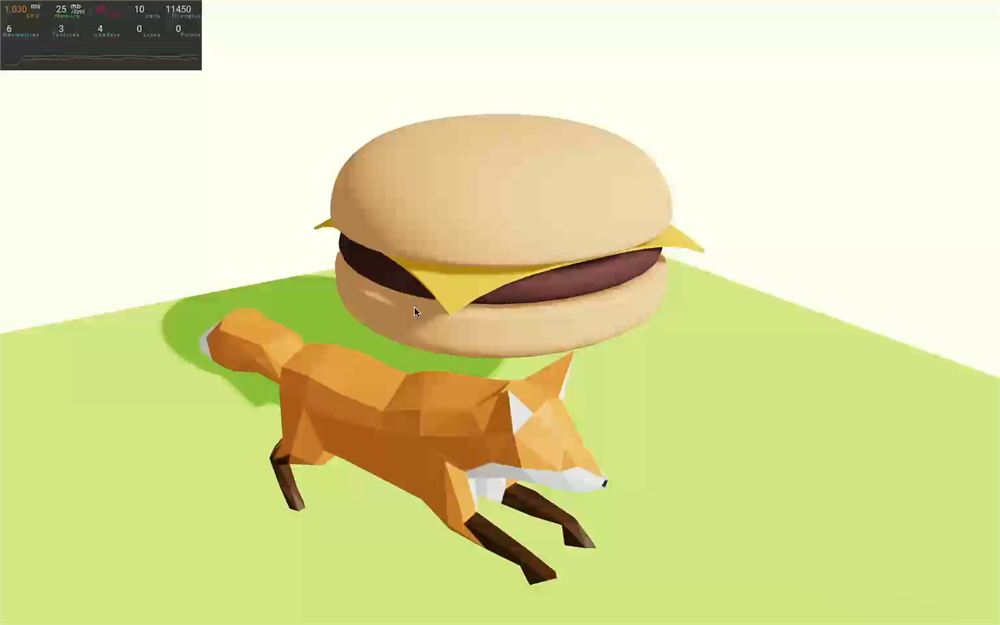
React Three Fiber 和 useAnimations 辅助函数会负责在每一帧更新动画。
如果你想让狐狸在几秒后开始走路,可以使用 AnimationAction 中可用的各种方法,比如 crossFadeFrom,它会对 Run 执行 fadeOut,对 Walk 执行 fadeIn:
useEffect(() =>
{
    animations.actions.Run.play()

    window.setTimeout(() =>
    {
        animations.actions.Walk.play()
        animations.actions.Walk.crossFadeFrom(animations.actions.Run, 1)
    }, 2000)
}, [])
动画控制与清理阶段
我们要更进一步地推进动画这个话题:让用户使用 Leva 选择动画,并对即将进入的动画做淡入,这样就不会出现突兀的变化。
首先,我们必须把 Leva 添加到项目中。
在终端中,用 npm install leva@0.9.34 安装 leva(我们锁定版本以防意外,你可以忽略潜在的安全漏洞警告)。
在 Fox.jsx 中,从 leva 导入 useControls:
import { useControls } from 'leva'在 Fox 函数中、useAnimations 之后,调用 useControls 创建一个带有 <select> 的调节项,选项是模型中可用的动画。
现在是一个自己动手尝试的好时机。
下面是解决方案,调节项的结果命名为 animationName:
export default function Fox()
{
    const fox = useGLTF('./Fox/glTF/Fox.gltf')
    const animations = useAnimations(fox.animations, fox.scene)

    const { animationName } = useControls({
        animationName: { options: animations.names }
    })

    // ...
}
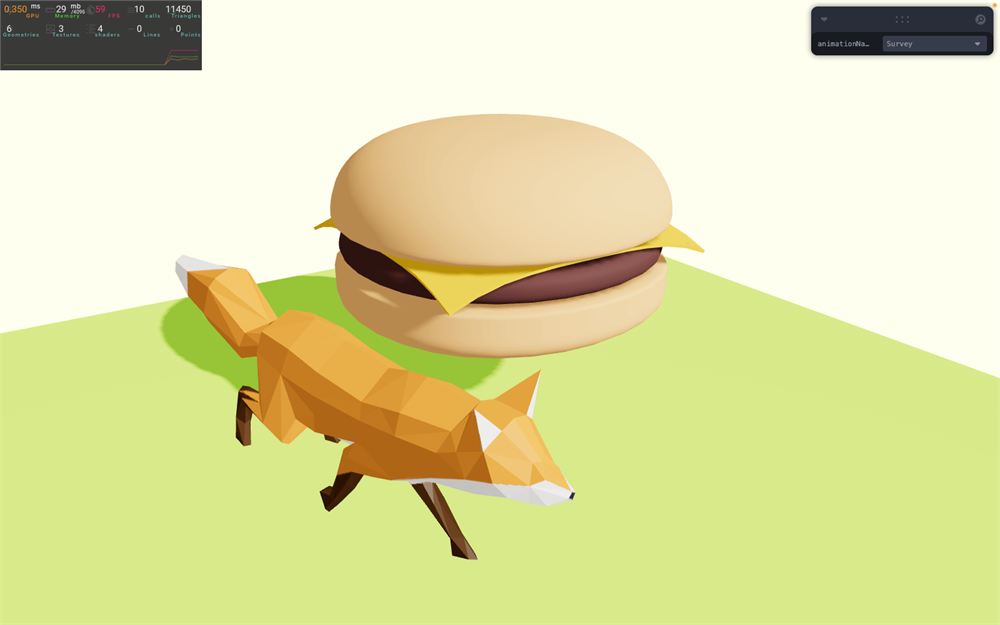
在 useEffect 中,我们可以用 animationName 变量来代替 Run 动画:
useEffect(() =>
{
    const action = animations.actions[animationName]
    action.play()
}, [])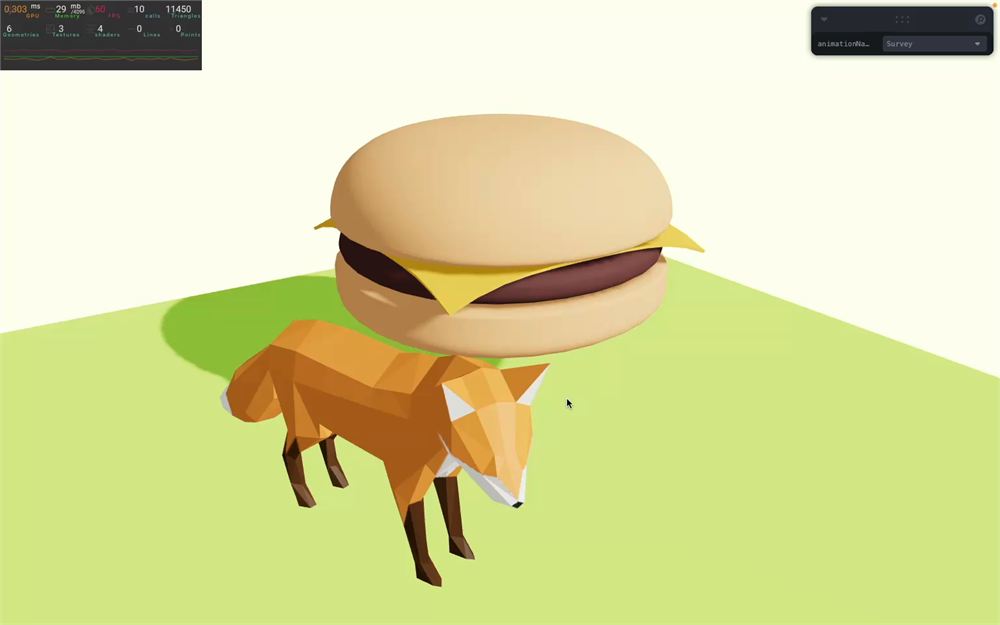
狐狸模型现在正在播放 Survey 动画,因为它是选项列表中的第一个。
现在,我们希望在用户更改 animationName 调节项时播放不同的动画。
目前,useEffect 的依赖数组是空的,意味着该函数只会在第一次渲染后被调用一次。这正是设置特定依赖项派上用场的地方。我们希望该函数在第一次渲染时被调用,同时在 animationName 变化时也被调用。
把 animationName 添加到依赖数组中:
useEffect(() =>
{
    // ...
}, [ animationName ])
如果你想检查函数是如何被调用的,可以添加一个 console.log:
useEffect(() =>
{
    console.log('animationName', animationName)

    // ...
}, [ animationName ])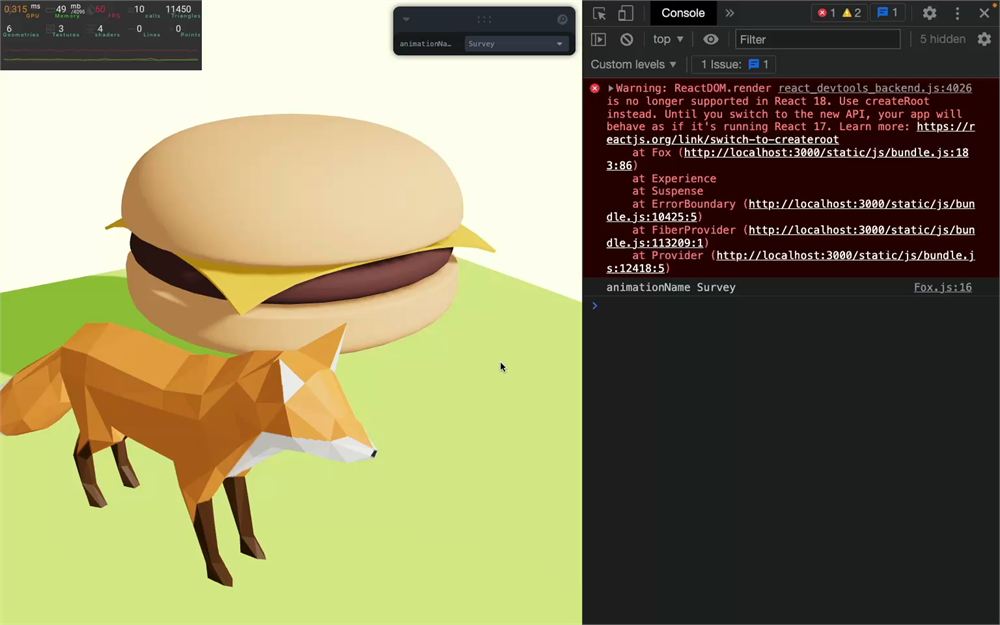
当我们更改 animationName 时,函数确实被调用了,但在切换到第二个动画后,狐狸的动画看起来很怪;切换到第三个动画后就更怪了。
原因是所有动画都在同时播放,Three.js 会把它们混合在一起。首先,你看到的是 Survey 动画;然后是 Survey 和 Walk 动画的混合;最后是 Survey、Walk 和 Run 动画的混合。
要解决这个问题,我们需要逐步停止旧动画(fadeOut),并逐步开始新动画(fadeIn)。
首先,移除 console.log。
然后,不要只是调用 play(),我们先通过在 play 之前添加 fadeIn 并传入 0.5(fadeIn 的持续时间,单位为秒)来做淡入:
useEffect(() =>
{
    const action = animations.actions[animationName]
    action.fadeIn(0.5).play()
}, [ animationName ])
现在,我们需要一种方法来淡出旧动画。
如果你还记得之前的课程,当你在 useEffect 中 return 一个函数时,该函数会在组件被销毁或重新渲染时被调用:
useEffect(() =>
{
    const action = animations.actions[animationName]
    action.fadeIn(0.5).play()

    return () =>
    {
        console.log('dispose')
    }
}, [ animationName ])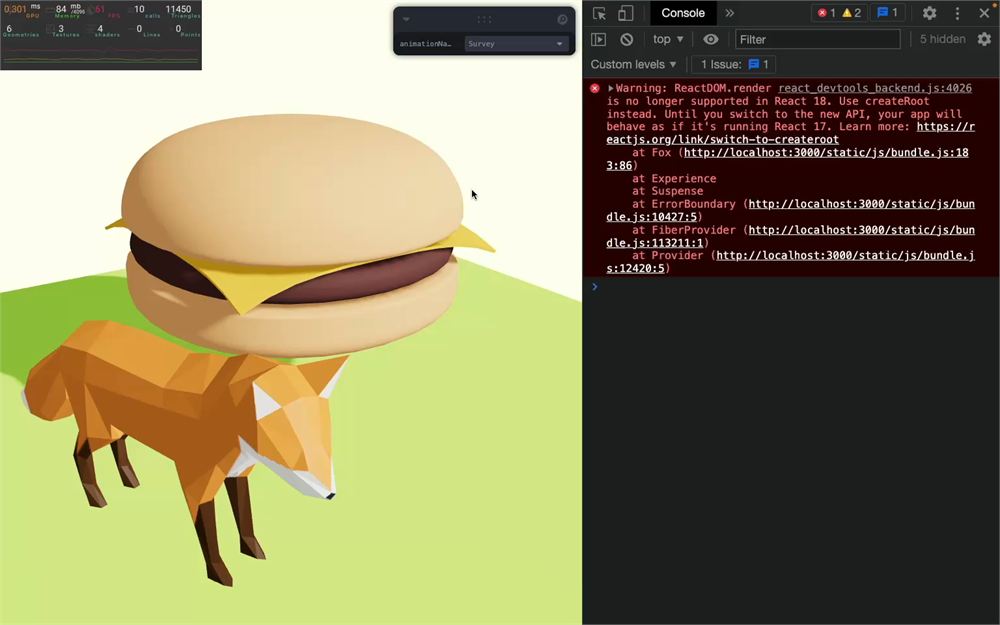
这是一个绝佳的机会,可以淡出我们保存在 action 变量中、当前正在播放的动画。
在 React 中,我们把这叫做清理阶段(cleanup phase)。在这里,我们确保销毁需要销毁的东西。
由于它就在我们创建 action 变量的函数内部,我们可以对它调用 fadeOut,并以 0.5 作为持续时间:
useEffect(() =>
{
    // ...

    return () =>
    {
        action.fadeOut(0.5)
    }
}, [ animationName ])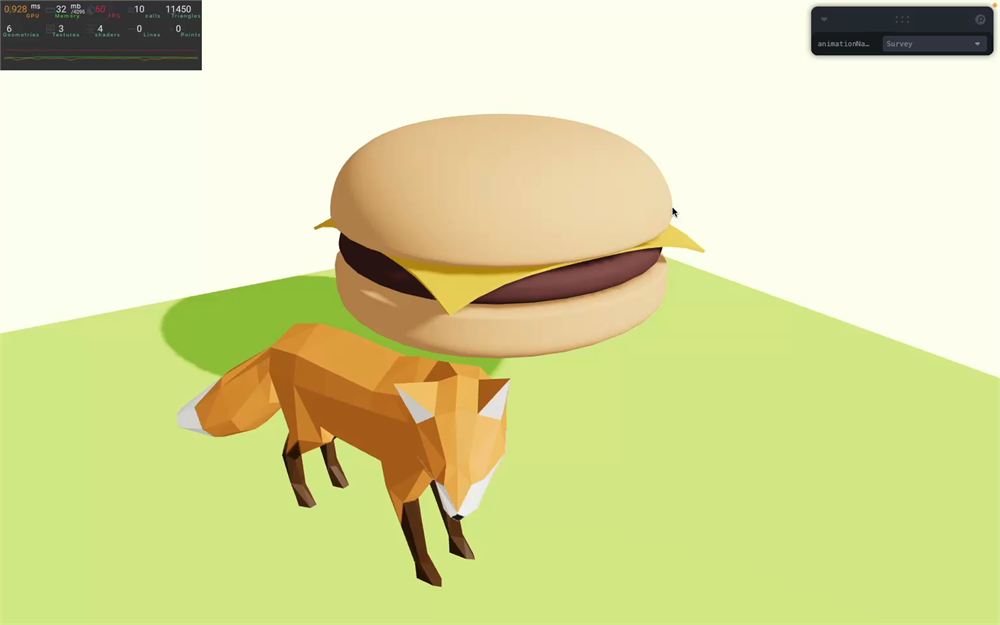
就是这样。狐狸的动画现在能正确地交叉淡入了。
出于某些原因,回到一个已经淡出的动画不会生效,我们需要重置它。
虽然这在狐狸的动画中并不重要,但重置动画也会让它从头开始。
你可以在 fadeIn 之前调用 reset 方法来做到这一点:
useEffect(() =>
{
    const action = animations.actions[animationName]
    action
        .reset()
        .fadeIn(0.5)
        .play()

    // ...
}, [ animationName ])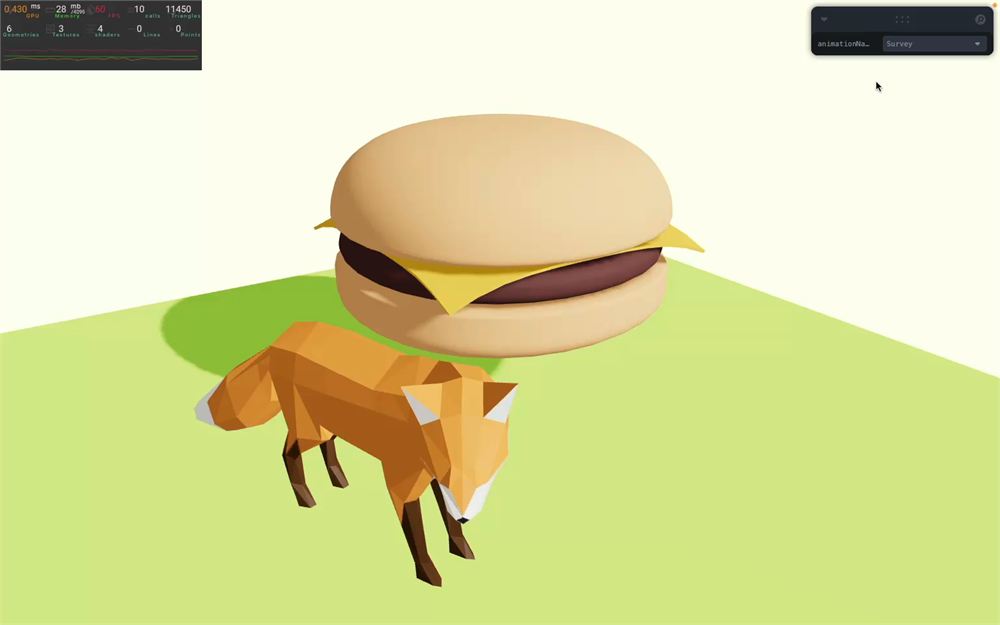
在这个例子中差别不大,但对于更特定的动画,你可能会需要它。
在接下来的课程中,我们会有很多加载模型的机会。